
Turn off Gmail notifications: Android, iPhone, Chrome

Gmail application comes with automatic notification settings that alert you as soon as a new email or message reaches your account. If you find these notifications to be irritating, here is a quick way to disable those notifications on your Android device or iPhone.
How to change notification settings on Android's Gmail app?
- Open your Gmail app and tap on the Menu key (3 horizontal bars at the top left corner).
- Scroll to Settings.
- Next, tap on your email account.
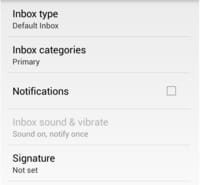
- Click on the Inbox sound & vibrate option. This will allow you to customize your notifications:
- Uncheck the Notifications checkbox to disable any notifications from your Gmail app. Your new settings should be automatically saved:
How to turn off Gmail notifications on iPhone/iPad?
- Open the Gmail app on your iPhone or iPad.
- Tap on Menu icon (three horizontal lines) and navigate to Settings.
- Choose your account and under Notifications select Notification sounds.
- Tap Email or Chat and spaces.
- Tap None next to notification sounds to disable alerts.
How to disable Gmail notifications on desktop?
- Open Gmail and log in to your account.
- Click on Settings (gear icon) and navigate to See all settings.
- Go to Desktop notifications section and select Mail notifications off to disable them.

- Finally, click Save Changes.
Do you need more help with Gmail? Check out our forum!
Subject
Replies